Jobs During Service
During service, here is a list of the jobs that you can split up between various helpers as needed to keep the show running, and descriptions of each. At a bare minimum, you will need one person to run the stream and setup the computer.
- Someone to set up the computer.
- Someone to control both the powerpoint and PTZ (Pan Tilt Zoom) camera.
- These jobs can be split up when using the back up controls.
- Someone to listen to the sound output and manage the sound board (optional)
Beyond the first two, the other roles are optional but will make the job easier and can be given out to anyone easily to help. Each role is described below.
OBS Stream Remote
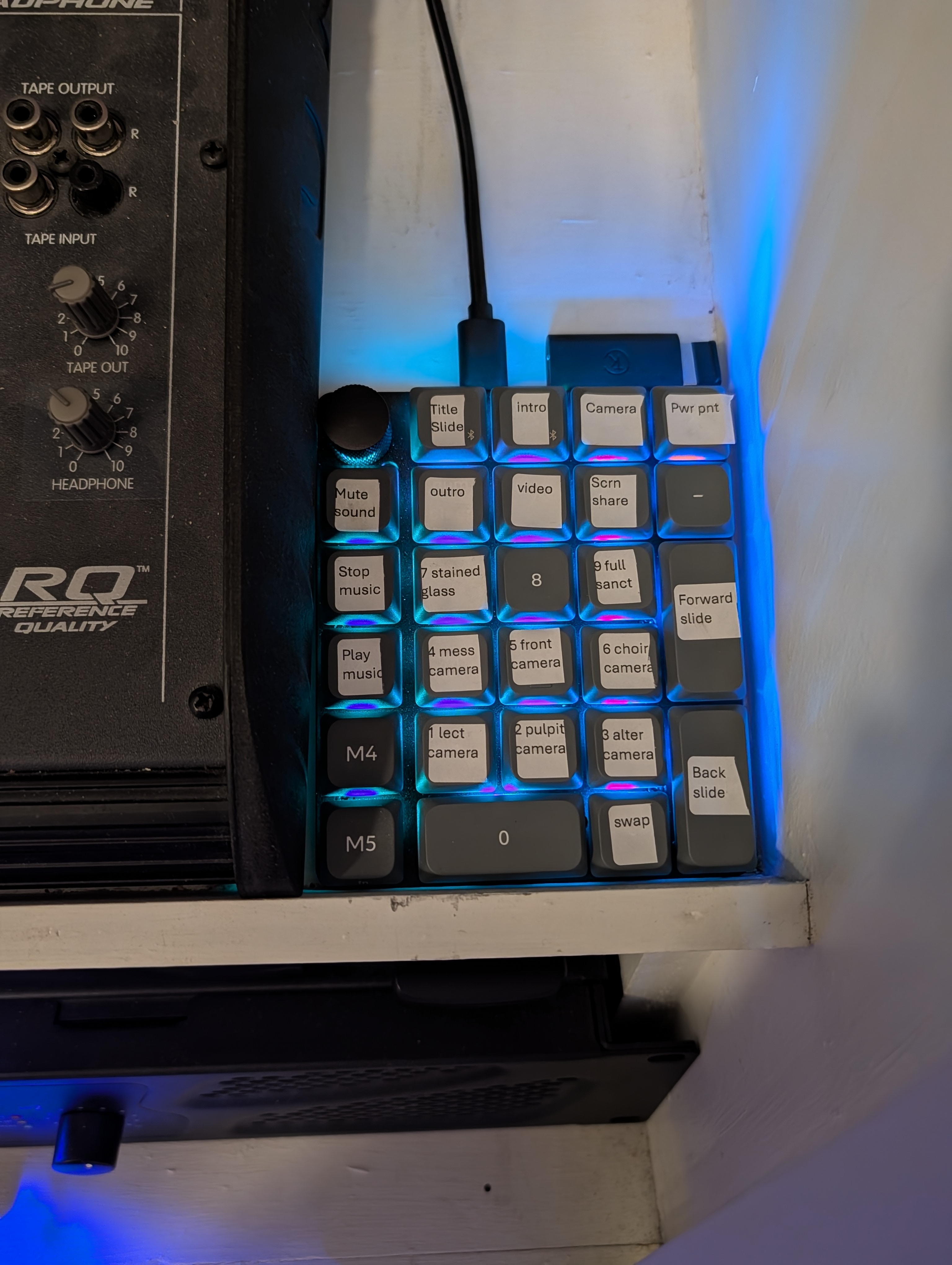
To make controlling the stream easy, there is a wireless mini keyboard that is linked to all shortcuts from OBS. To make it wireless unplug the keyboard, plug in the wireless dongle sitting next to it, and flip the switch on the top of the keyboard to G.
The buttons have all been labelled. The numbered buttons are camera presets and the 7 buttons along the top are different stream displays. The most common buttons to use are on the right hand side, the forward and back slide affect the powerpoint and the swap switches between the camera only view and the powerpoint and camera view. “Mute Sound” will mute all sound to the stream and play and stop music will play the music loaded in the music source
Computer
All other jobs will center around this person often. A separate page will be used to describe the role more fully, but during service this role will be setting up the service.
You will also be responsible for any other roles that need help and coordinating where possible hence this role will often need to be someone older to step in and help if necessary.
PTZ Remote (Optional/Backup)
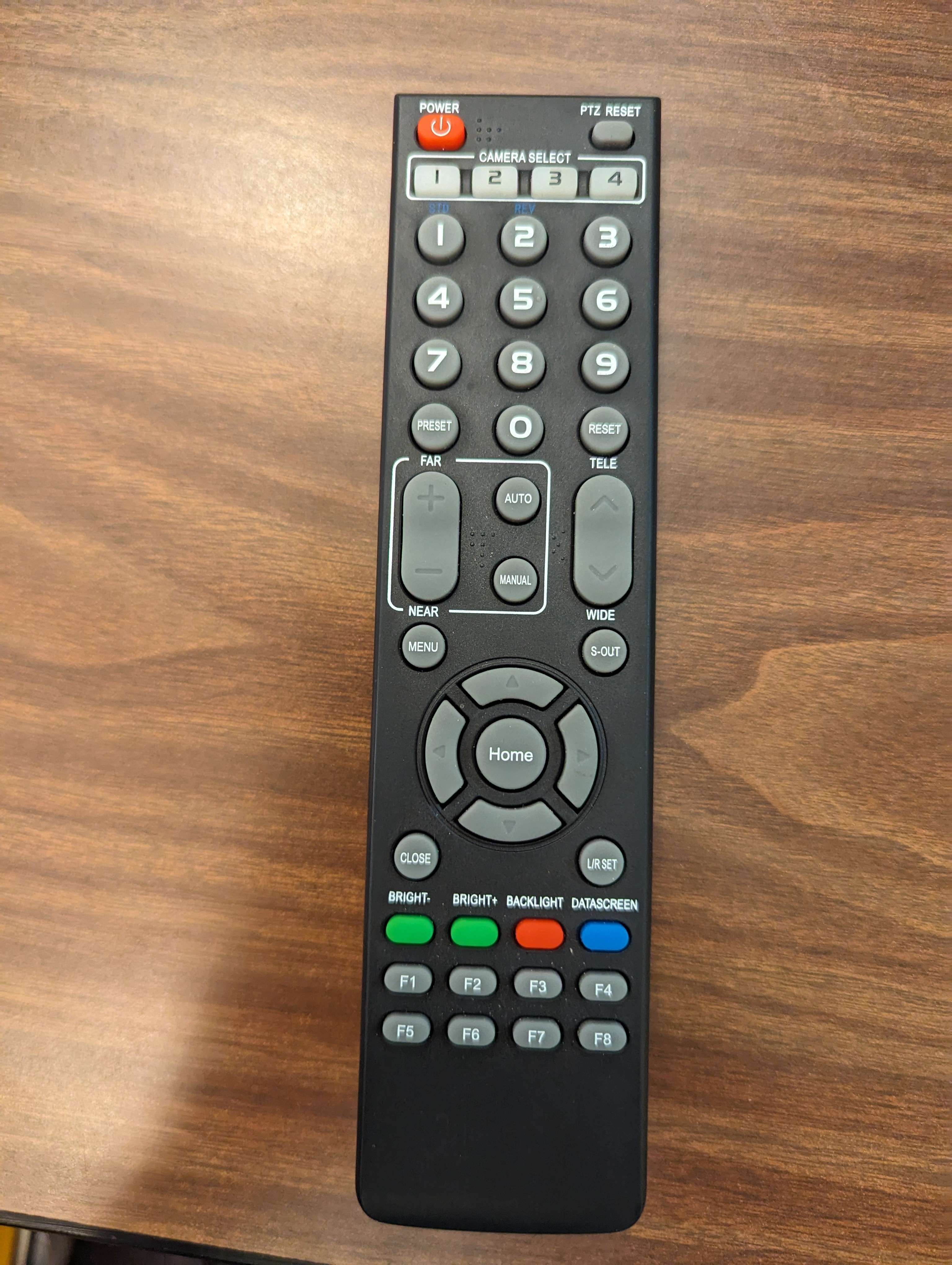
If the OBS camera controls are not working, the backup is a remote located in the audio cabinet on the bottom shelf. There is an infrared receiver on the bottom shelf too, just point the remote at the cabinet to use it. The preset numbers are the same as on the computer and remote. For custom angles the Tele/Wide corresponds to zoom while the arrow keys pan the view. The presets are left here for reference:
- Lectern - Liturgist
- Pulpit - Pastor
- Front of Altar - Communion and offering
- Dan’s Sermon Seat
- Front of house - Sermon and benediction
- Choir and childrens time area
- Stained glass
- Choir on altar
- Full Sanctuary zoomed out
Powerpoint Clicker (Optional/Backup)
To use this You will need to turn on keyboard manager in Power Toys on the computer, and reset the hotkeys for next slide in slideshow and toggle two scenes in the OBS, you may need assistance doing this reach out to Matthew Fallon (number on the home page).
This person will be given a print out of the presentation and a powerpoint clicker:
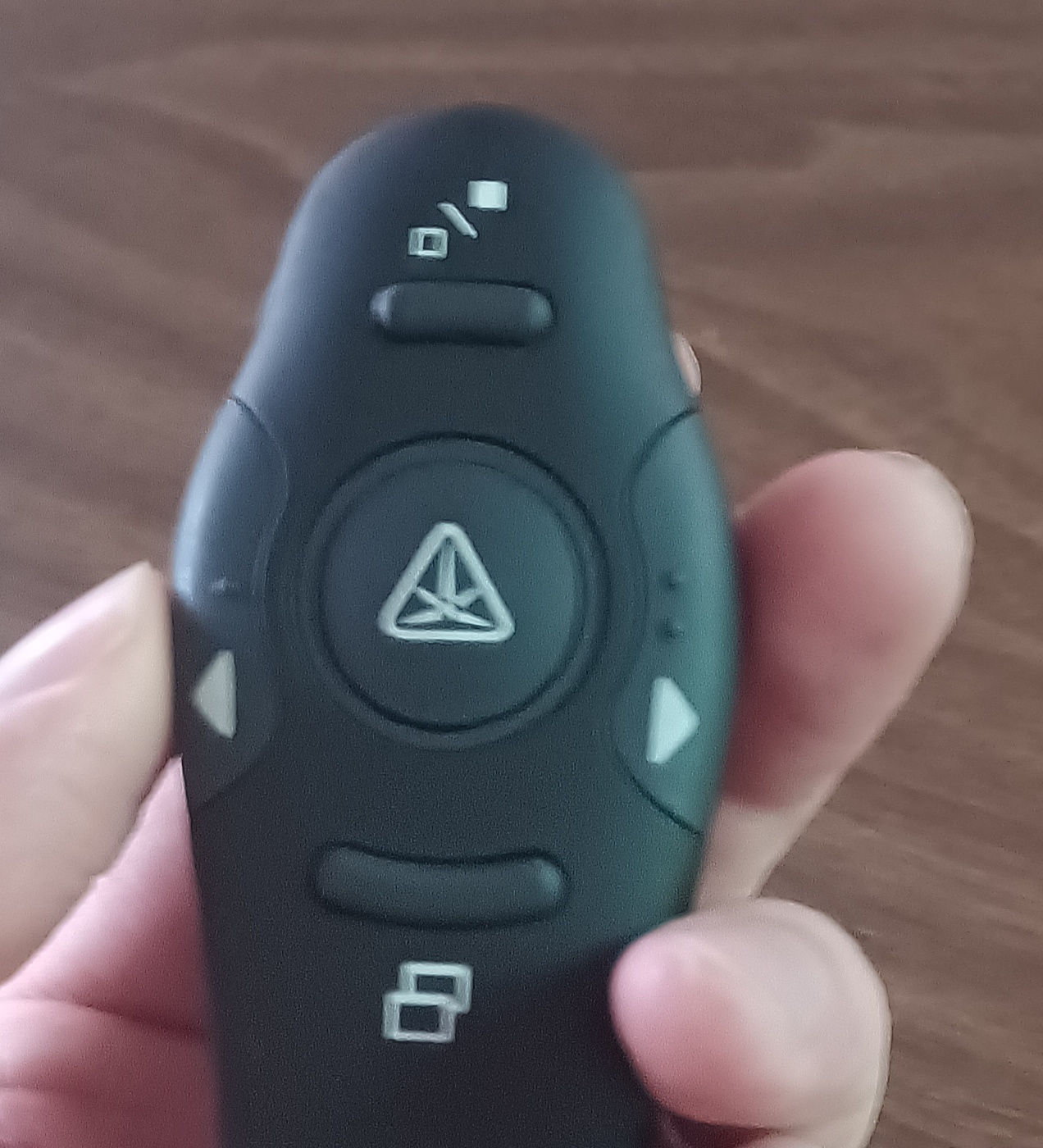
The left and right buttons will advance the powerpoint forwards and backwards as expected. (When the program is up on the computer screen) The top button will switch the tvs between full screen camera and powerpoint mode to allow you to switch whenever you feel having a better zoom on the camera would be best (during the sermon is a good time)